|
Help menu |
| MiraMon manual | MiraMon web |
| MiraMon Users Forum - FUM | MiraMon versions diary |
| News | Configure parameters |
| Working directory | MiraMon language |
| MiraMon menus (full, advanced, ...) | About MiraMon |
MiraMon manualThis allows the user to access the MiraMon Help Guide. This option can also be accessed by pressing the F1 key. In the MiraMon Help Guide window, it is possible to access the contents (in which the structure is shown in books and pages of the help text). It is also possible to access the help texts through the table of contents or by searching for a key word. In this last case, it is possible to access all the pages in which the searched word (which is highlighted in blue) appears. From this MiraMon Help Guide window it is also possible to access the MiraMon Upgrade Service (MUS) (https://www.miramon.cat/USA/Prod-MUS.htm) and the main MiraMon page. For both options it is necessary to be connected to the Internet. 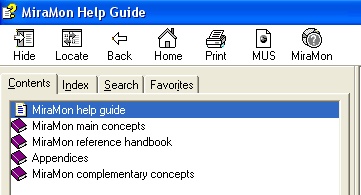
MiraMon webThrough this link, users can access to MiraMon website, also accessing to the project news, the products and reference cartography, training options, a set of information about research and technology based on MiraMon application, etc. 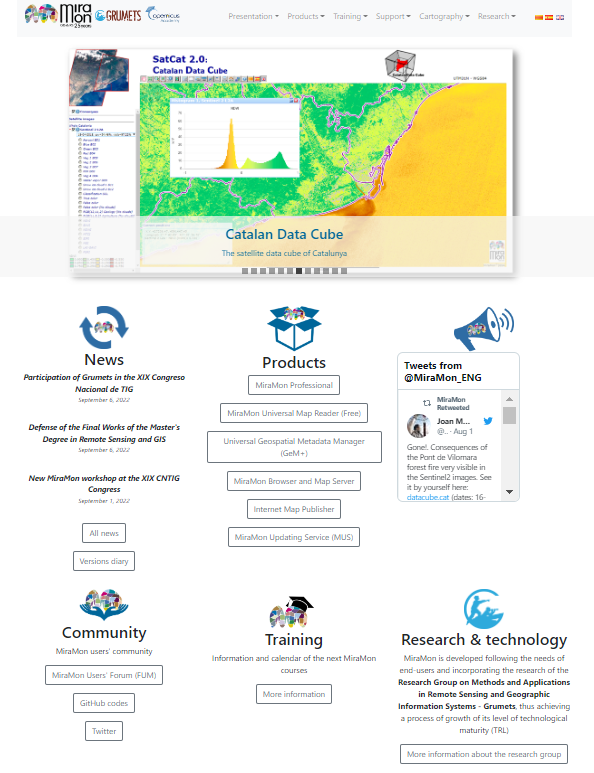
MiraMon Users Forum - FUMMiraMon Users Forum is a collaborative communication tool among MiraMon users with the main aim of allowing experience exchanges, answer doubts, or other discussion topics among people in the community. The forum has different discussion threads or topics, each one of them is related with a different debate area, for example MiraMon products, Internet technologies, process automatizations, etc. The first message determines the initial discussion topic or thread and, from there, a series of messages follow, which, in fact, those are the answers that other users had been adding to this initial topic. When the answer has been generated by MiraMon programmers, this answer is stated in bold and colored.
MiraMon versions diaryMiraMon versions diary is a catalog that contains the program news. It is presented as a chronological sorted list, showing on top, the latest information, stating if those are news, improvements or corrections, and informing users to which module of the program belongs. The complete list can be checked, which contains more than 1,800 posts, corresponding to the news of the last 20 years, or either make a selection according to the modification date, the MiraMon version, or according to a description.
NewsIn the Help menu there is a link to MiraMon website that contains the most interesting latest news for the MiraMon user community. In this webpage, users can find documents about the participation in congresses by multiple research groups conforming MiraMon team, the publication of scientific articles using MiraMon, training opportunities, etc. 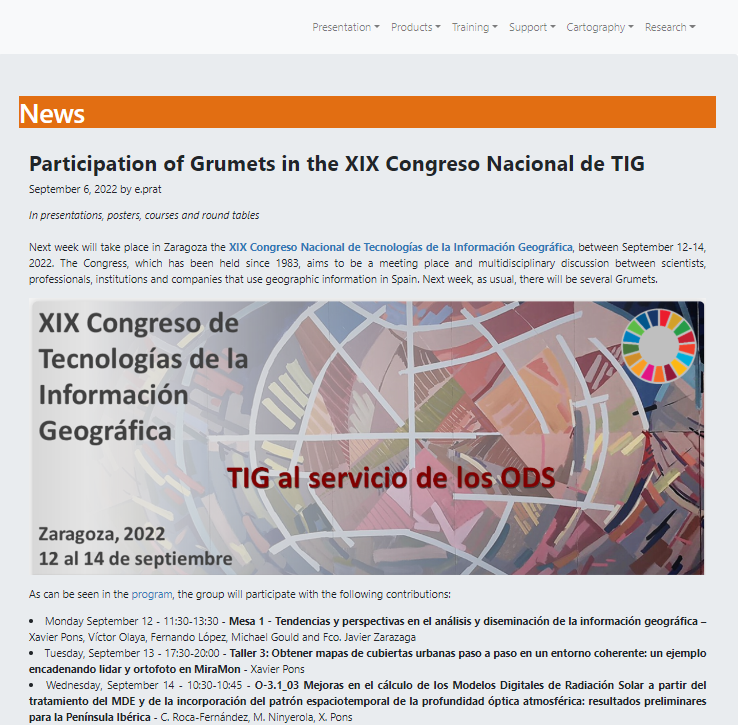 For further information, please consult News and updates.
Configure parametersWhenever MiraMon sets up, it establishes some parameters by default. These parameters can be modified by the tabbed structured configurator accessed via “Help menu | Configure parameters”, or either editing the specific parameter of the parameter configuration file of MiraMon, named MiraMon.par, which is organized in sections and keys. This file .par must be in the disk and directory stated in the box “Work directory” of “Program Properties” (to access the Work directory, select the program icon and run “Alt+Return” or run “File/Property” in the Program pane). It is admitted that the directories referenced in MiraMon.par file contain relative addresses. It must be taken into account that if the file is edited directly, changes will not take effect until users start a new session in MiraMon. Instead, if the tabbed box is used, changes are applied immediately in the current session, and also in the following sessions when the program is opened. The parameter configuration file can also work in corporate mode, when the parameters can be set at different levels: corporate, group and individual user. In corporate mode, the parameter configuration tool of the menu is not active and, the administrator of the corporation (company, administration department, etc) will be the one who will edit the parameters from a plain text editor like Windows Notepad (Notepad.exe). A configurable message is shown (via corporate MiraMon.par: info_grup) and the configuration is the union of the three MiraMon.par files (corporate+group+user). Although it is possible that both directories (the one of the program and the one of the user work) are the same, it is recommended that in a network installation the working directory is assigned to each host; this way every user can have its own particular custom configuration (profiles) in the same corporate environment, which does not interfere with the configuration of other users. For further information about Corporate management of MiraMon.par, please check Corporate management of MiraMon.par. Configuration preferences of MiraMon can be set in relation to the parameters stated in the following sections of this Help text, grouped according to its theme. For each parameter the section and key where the MiraMon.par file are stated, and also the default value is mentioned, in bold, and other possible values, with a smaller font, next to the default option.
|
MenusMiraMon allows configuring several options related to customization both in the menus and in the applications (MSA), in a presence/absence of predefined menus level, the appearance order when running the program and even including other preferred applications the user parallelly uses and as a complement to MiraMon (like the Scientific Calculator or Windows Notepad, for example). By default, MiraMon has several defined menus: the Full Menu (identified by the menu number=0), the Advanced Menu (menu number=1), the Intermediate Menu (menu number=2), the Basic Menu (menu number=3), the Digitation Menu (menu number=4) and MiraMon Universal Map Reader Menu (menu number=5), which are predefined with a very intuitive content (entries) in accordance to the assigned name. For example, the option "Full Menu" contains all menus, option, etc.; whereas the option "Basic Menu" suppresses many entries. In addition to these predefined menus, users can "Add" other menus by writing the name it defines it, "Delete" some predefined menus or the ones created by the user and/or change the "Order" by which those menus are viewed when opening "Help | Menu". It is also permitted to define what is the default menu configuration when the user runs MiraMon. In the following example a new menu has been created, named Master Menu (for example, addresses to students of a master degree, like the Official Master in Remote Sensing & GIS and MiraMon assigns the menu number=6), which has been rearranged in order to make it appear in the first place when available menus are consulted, and it has been activated as the initial Menu in MiraMon main window. 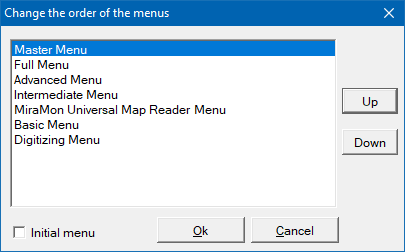 With this modification, when opening the Help Menu, the new created menu will be visualized (Master Menu) on top of the other menus (in the fist place) and with 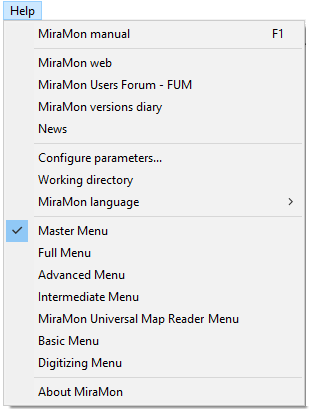 It is necessary to notice that, in the case of the "Delete" button, deletions are hierarchical: so, in order to delete a whole drop-down menu, the corresponding entry needs to be deleted only. In the MiraMon.par file, menus are configured according to the Full Menu, which incorporates by default, two external applications (The scientific Calculator named APLIC_0 and Windows Notepad, named APLIC_1), so the configuration of other menus is done according to the deletion (Del key) of some options in the Full Menu and/or the inserting (Ins key) of new applications, which allows users to add entries to run their favorite applications. In order to refer to each menu in the MiraMon.par file, the numerical code published in file MM32.dst (placed in the directory where MiraMon has been installed) is needed, and it can be edited by using any text editor. For example: 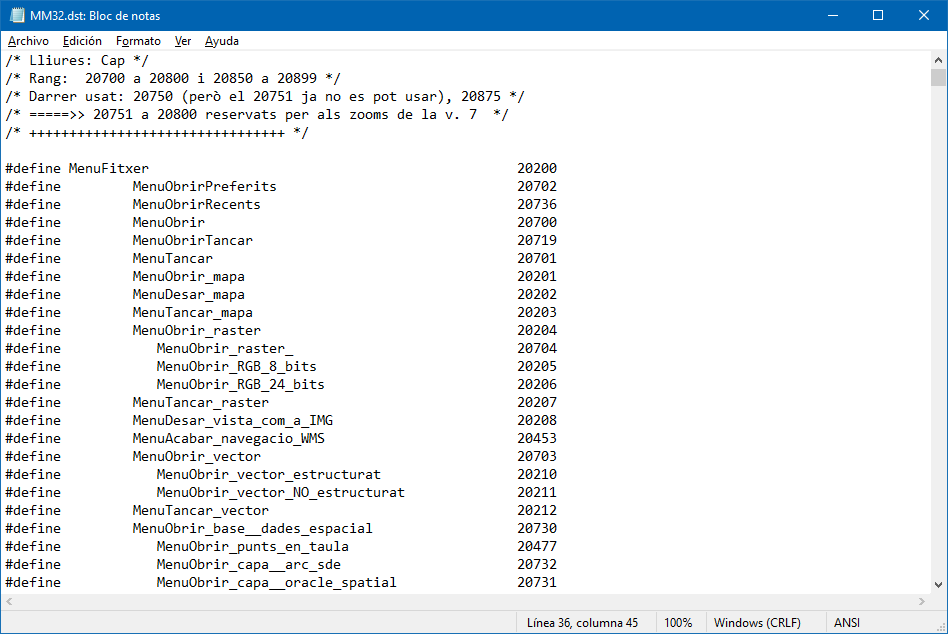 For each APLIC_# section, it is allowed to specify the title of the new entry, the Menu code after which the entry has to be added (a minus sign '-' is needed to be used to state 'before' and not 'after' the code), the command line that runs the application to open and, if desired, a separator bar can be incorporated in order to state that those are external applications and not the ones of MiraMon.
Please check Corporate management of MiraMon.par in order to define the user profiles in the same corporate environment. |
|||||||||||||||||||||||||||||||
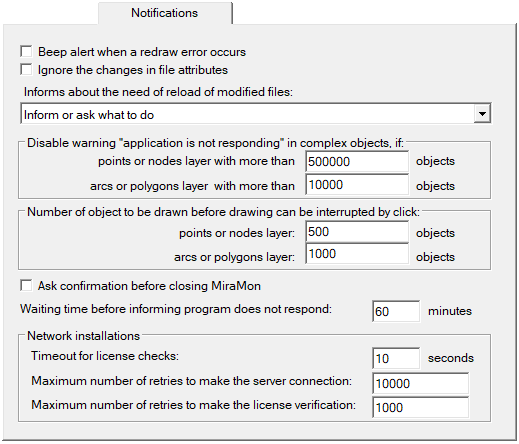
NotificationsMiraMon is very flexible in relation to the configuration of notifications. For example, it allows defining that the program produces an acoustic warning in case of an error in the redraw of a layer. This parameter can be modified during the session through the menu "View | Special". It also allows deciding whether ignore changes in file attributes. In Windows 9x, NT and later version, this option must normally be 0 in order to guarantee an optimal performance of the program (i.e. it will detect any change on the files where the user is working at). Nevertheless, this option was useful in Windows 3.1x when accessing data in a network server because, sometimes, fake notifications showing an impossibility to read the attributes were shown. If this option is enabled, MiraMon will not detect if any change has been made in the graphic files or the database tables during the working session (for instance, because another user has modified a DBF or because the topology is being reconstructed) and this can cause that the program works incorrectly. This parameter also can be modified during the session via the menu "View | Special". MiraMon allows that, when detecting that a file has been changed in its attribute, time, date and/or size, the user selects what to do regarding file upload. This parameter also can be modified during the session via the menu "View | Special". As of Windows Vista and Windows 7 versions, the operating system can deactivate the drawing of an application when thinking that the application "does not work". This causes that, in very complex layers, it does not draw on screen as of a certain element and, even, once the drawing attempt is finished, MiraMon will receive a new redraw instruction by the operating system, which generates a loop, sometimes eternal, of incomplete redraws that is only stopped by pressing the shift key and, then, resizing the zoom that allows working over a smaller complexity level (fewer objects). The parameters N_Objectes_PntNod_EvitaNoRespon and N_Objectes_ArcPol_EvitaNoRespon allow, for points and nodes, and for arcs and polygons respectively, deactivating this behavior for complex layers on Windows. The default values had been adjusted by regular processors in late 2012 and since then, there was no need to readjust them, but if the user has an older or slower computer and notices this behavior, it will be convenient that these values are decreased until the problem is not shown. It is interesting that the program can interrupt redrawing in order to make a query, a new zoom, etc, not only by pressing some of the Shift keys (that use to show a vertical arrow, do not confuse with [Caps Lock] key), but also by an action of the mouse. However, during the first objects of a drawing loop, the program cannot “listen” if the user has clicked with the mouse left button (or if it is done with the zoom wheel) because if the click was the second point of a zoom or the finish indication of a movement (pan), the event happens so fast that it ends up detecting the click while drawing the first objects yet and always stop the drawing after a zoom or a movement, which will be an undesired action of interrupting the drawing with a mouse click. Because of this it is needed to state how many objects are allowed to be drawn before considering that the clicking of the mouse button is not the end of a zoom or movement operation but a request of stopping the drawing from an action of the mouse who initiates it. The default values are: 500 for points and nodes, and 1000 for arcs and polygons, but these values may have to be raised on very fast computers or networks and, vice-versa, to be reduced on fairly slower computers or networks. If users see that objects are kept without redrawing easily after a zoom by window, the value must be raised; on the other hand, if users have to do very long clicks for the program to mind the non-drawing instruction, the value must be lowered. If -1 is stated, the program assumes that it is NOT desired to never interrupt the drawing with a mouse click (but it can be made, if desired, by clicking the Shift tab). The notification parameters can also allow determining if it is needed to confirm with the user when the order of closing the program is given. Regarding the parameter configuration for network installation, the parameter Waiting time before informing: "program does not respond" allows users to control the number of minutes it takes to notify when a MiraMon session is not responding. If working with files that have a very slow computer processing and messages warning that this MiraMon session is not working appear very often, it is recommended to raise this value. The minimum value is 1 minute. The suggested time for users to wait for the network to respond to the license verification when there is an error (in seconds) is defined according to the parameter timeout for license checks (this parameter only has not an application in free licenses of the program). The program then shows the following message: "No access to network license. Please wait about 'x' seconds and retry." This value is irrelevant if MM_NET is installed in the "login script" or a similar one. The network administrator will have to adjust this variant following the next protocol:
2/ If the program is run without problems, repeat the test with less time, 5 seconds for example, until a message like the previous on ("No access...") appears. 3/ Raise the time again (ex.: 7 seconds) until the problem is not notified. It is needed to adjust the variable to a final value a bit higher than the one obtained by this trial-and-error system. Under Windows 9x, NT and posterior versions, this value must never be the one suggested to users because when adjusting MaxReintents_1_Xarxa and MaxReintents_2_Xarxa conveniently (as it will be shown later) the establishment process of the connections can be totally performed in the background thanks to the real multitasking of these operating systems. Even so, this value was especially important in Windows 3.1x, since because of the non-preventive multitasking characteristics of the system, sometimes it was necessary to make users wait some seconds to let network connections establish. The parameter Maximum number of retries to make the network connection before assuming there is a real error in the server connection is, by default, 10000; previously (before August 2001) it was 100, but the CPU speed increasing has made raising it commendable. This parameter did not work under Windows 3.1x, and it must value 1. The parameter Maximum number of retries to make the license verification before assuming there is a real error in the license verification with the network has been established in 1000. This parameter did not work in Windows 3.1x, and it must value 1.
|
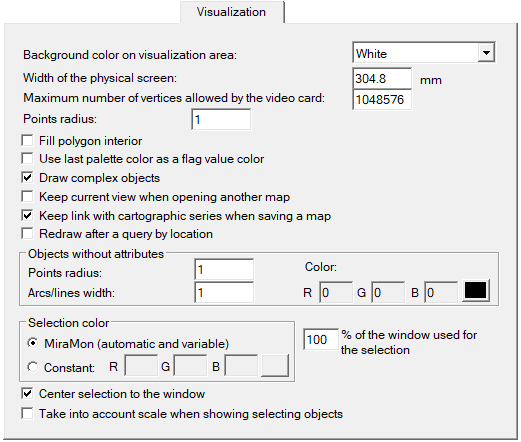
VisualizationMiraMon allows configuring several options related to MiraMon general visualization characteristics like, for example, the initial background color of the client area (this parameter can be changed during the session via the option in the menu View | Background color), the representation radius of the point vectors (on screen pixels), etc. The parameter screen width is also a configurable parameter, which is needed for a precise calculation of numerical scale. Some graphic cards (also happens with printers) fail when trying to draw complex objects (for example, when drawing 20000 vertex lines). The parameter 'MaxVertexsTargetaGraficaEx' allows defining which is this limited value according to the user computer. If an object exceeds it, MiraMon will simplify it with an intelligent algorithm which usually does not cause undesired esthetical effects. In the case of complex objects, it is also allowed that MiraMon do not draw objects that reach a high level of complexity establishing the parameter 'DibuixaObjectesComplexos' in 0. DThis way, users can work with polygons of, for instance, 50000 vertices, without redrawing them on views that require for a number of vertices superior than 'MaxVertexsTargetaGraficaOImpressora' iand then obtain faster redraws. When printing, simply activate the option View | Special | Draw complex objects. It is also allowed to state if fill the interior of the polygons with colors is desired when opening the first file of this type. Regarding the color assigned to the NoData values (also known as flag values), in the case of a file containing them, MiraMon allows users to designate the last color included in the palette selected as a color for pixels or entities marked with that background value. Additionally, it allows selecting maintain current view when opening a new map, a parameter that also can be changed during the session via the option of the menu "View | Special | Maintain current view when opening a new map or a new layer". When a file belongs to a cartographic series and a map is saved, users can choose between maintain the general display and legend characteristics of the series or save the current characteristics of visualization and legend. After a localization query, it must be convenient to redraw the whole screen to avoid polygon overlap artifacts that cover points, etc. The fastest option is to not redraw and, in case there is an error on visualization, force a redraw using the button In the case of the visualization of objects without attributes, when a point-type entity does not have a record in the database, or it is empty (blank), MiraMon incorporates a parameter, whose value must be >=0, which allows defining the radius to determine the width, whose value must also be >=0. Finally it also permits users to define, in case of objects without attributes, the color of the objects (R,G,B), where each component must belong to the range [0,255]. Additionally, MiraMon allows users to configure the selection color used to highlight the elements when performing a selection. This parameter can be changed during the session through the menu View | Selection color. It also allows determining the percentage of the window occupied by the selection, and defining, if desired, the center selection in window as well as determining if scale affects visualization of the selected objects.
|
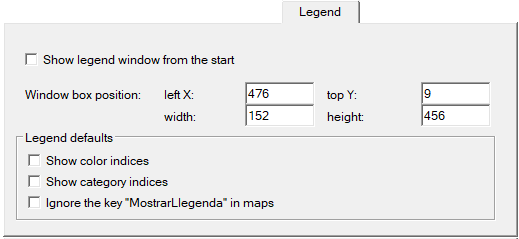
LegendIn parameter configuration related to the legend that MiraMon allows configuring, the option Visualization of the layer in the legend when signing in MiraMon is found. By default, this option is deactivated. Also, the position of the legend in the client area can be defined and modify the elements of the legend (color index, index of links with categories and ignoring the key "MostrarLlegenda" in the maps, making the legend always visible).
|
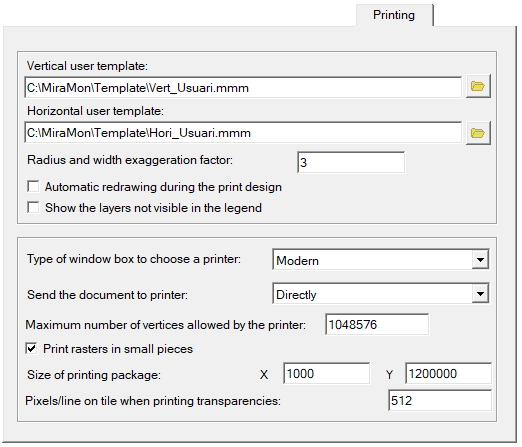
PrintingThe printing parameters that are configurable are related to two sections: on one hand to the MiraMon templates, the exaggeration factor which, by default, is applied in radius and line thickness when printing, the automatic redraw during the printing design, a parameter that controls if the printing design box is redrawn automatically or if the user requests the petition via the corresponding button or pressing F5, as well as showing in the legend the layers declared as non-visible or that are not visible since their scale has been specified for them to not being seen or, simply, because those are not in the field of the map. The default value (0) hides these layers during the printing.On the other hand, it allows configuring printing parameters like the type of box to choose the printer, with the Windows classical box or the modern box -default value, which allows printing a file without redefining the printing port when clicking the button "Printer…" on the printing design box. It is also allowed to determine if the printing is generated on the computer before sending it to the printer, an option that is especially useful when printing complex documents (with transparencies, semi-transparencies, etc) in wide format printers (plotters). Similarly, in the case of limitations of some graphic cards when drawing very complex objects, some printers also fail. The parameter 'MaxVertexsImpressoraEx' allows defining which is the limit value for the user computer. If an object exceeds it, MiraMon will simplify it with an intelligent algorithm that normally does not cause undesired esthetic effects. The following configurable parameter is to print rasters in small packages. This option is useful when the drivers of a printing device cannot print rasters higher than 1 Mbyte or the result is a corrupted image. The default option is enabling the option (print rasters in small packages) and it is NOT recommended to change it. The size of the packages can be changed, this size is by default 1200 in X and 1000000 in Y. A higher specification will cause a faster printing, but some plotters can have problems, especially when the printing is sent "to the printer" and not "to the computer". The following option is useful when the drivers of a printing device cannot print transparencies; printing is automatically done in tiles for layers that have some level of transparency, which allows many printer drivers to then generate a correct result. It is necessary to indicate the number of pixels on the side of the tile in the print. The default value is 512; if you do not want this printing to be done in tiles it is necessary to indicate 2147483648. VERY IMPORTANT: If despite using a small value it does not print, you must indicate to the driver that you want to prepare the print "on the computer" and not "on the printer".
|
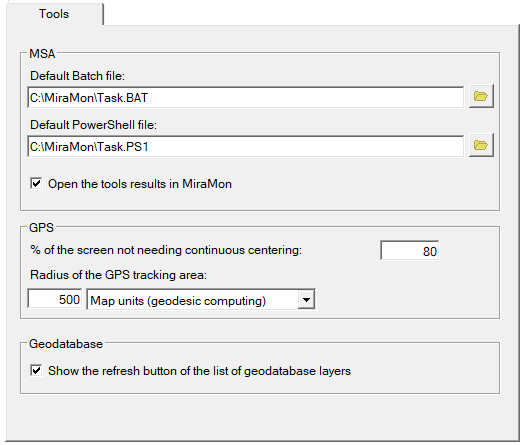
ToolsThis allows configuring where to save the file of Batch processes of support applications (MSA) as well as deciding if the result of an MSA running has to be opened automatically from the MiraMon session where the MSA has been run. It also allows determining the parameters that regulate GPS, tracking, how is the percentage of the center of the screen that does not need re-centering of the last point in the GPS route (a 100% value only re-centers when the route disappears from the screen while a 0% value re-centers constantly whenever a refresh is sent by the GPSMM), the circle radius drawn around the last read point of the GPS and the units of this radius (Cartesian o geodesic). Tools parameters also allow configuring aspects related with geographical databases (SDE, SDO, etc), as, for example, determining if a refresh button of the SDO layer list is wanted to be shown. Nevertheless, it must be taken into account that this is a performance that can take long, and it will be interesting to hide it for some users.
|
|
Working directoryThis shows which directory is MiraMon's working directory. That is, which directory MiraMon.par is in (this directory has no relationship with the working directories in which we have images, vectors, palettes, etc). This command is for troubleshooting when you use MiraMon in a network and normally it is not needed. The working directory can be set from the program command line using the "/DT" parameter, but normally it is set using the appropriate properties box of the MiraMon icon. 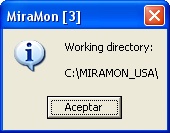
MiraMon languageThis allows users to change the default language of the program. Currently, there are three language versions: Catalan, Spanish and English. Alternately to this way of changing the language, it is also convenient to know that a session of the main program, or any MSA, can be run in the desired languages through the command line using the parameter "/IDIOMA=" and stating CAT, SPA or ENG.
MiraMon menus (full, advanced, ...)MiraMon menus are configurable so that the user, the corporation to which they belong, etc., can customize them according to their needs. Pre-existing menus can be expanded, with the incorporation into the MiraMon menu of access to other applications, such as the Windows scientific calculator; it is also possible not to display or even delete those complete menus or some of their sections that are not desired to be used by users (of a corporation, for example), as well as allowing the MiraMon menus and their sections to be reordered. It is worth noting that deletions are hierarchical and therefore, to not display an entire drop-down menu, you simply need to deactivate the corresponding entry. In the help menu, several default menu options are offered, each of which offers one or another of the functionalities of each menu, although as mentioned, you can create your own personalized menu configurations. The complete menu incorporates all the programmed entries of MiraMon, while the rest of the menus eliminate several entries. To customize a menu, you must access the MENUS section of the MiraMon.par file or the Menus tab of the Help | Parameter Configuration menu and proceed as explained.
About MiraMonThis shows general information about the program (compilation date and time) as well as about the number of colors detected in the current configuration of your graphic board if you click on the color icon in the lower right margin of the presentation box. It also reports on support for files larger than 2-4 Gbyte (default from version 8) and on the total and free physical memory (RAM) available on the computer and in the paging file on disk.
|

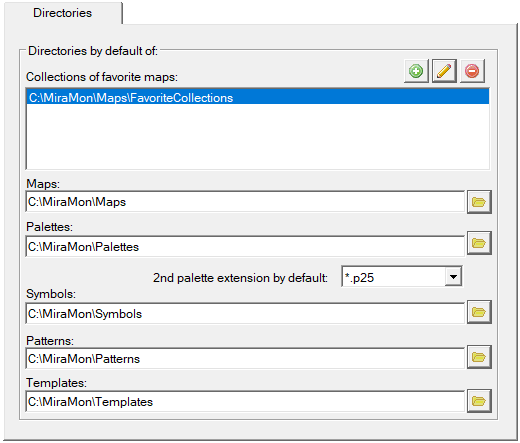
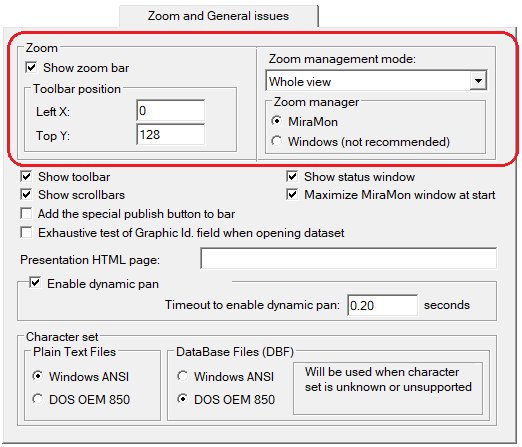
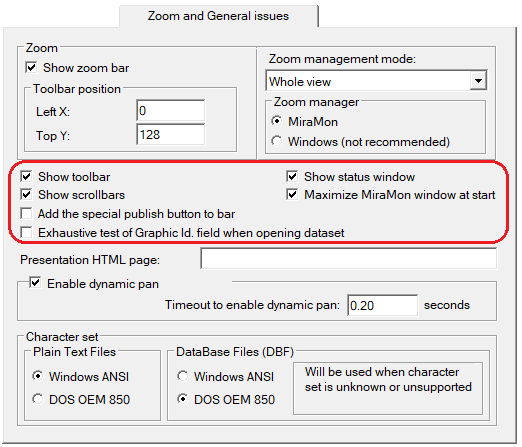

 that means that it is the one shown by default as a general visualization menu of the program, and it will show, in the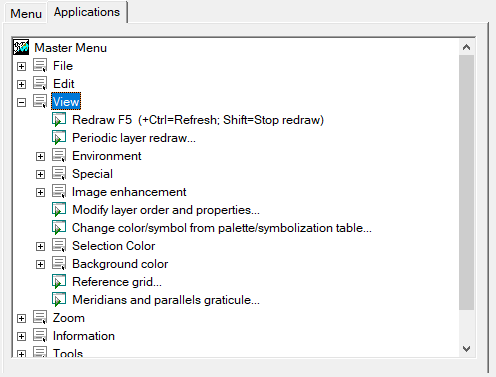
 in the button bar or pressing F5, or either with the menu